Gmail Storage Full? Find and Delete Large Emails to Fix It Fast
April 29, 2026 · Written by Raghu Kumar
You're in the middle of sending an important email when Gmail hits you with a warning: "You're running out of storage." Or worse — someone tells you their email bounced because your inbox is full.
It happens to almost everyone. And the culprit is usually not thousands of tiny messages — it's a handful of large emails sitting quietly in your inbox, each one eating up megabytes of your precious storage.
Here's the thing: Google gives every account 15 GB of free storage shared across Gmail, Drive, and Google Photos. Once that fills up, new emails stop arriving altogether.
The good news? You don't need to buy more storage. You just need to find and delete the right emails — and set yourself up so it never sneaks up on you again.
This post walks you through every method to find and delete large emails in Gmail, and shows you how to save those filters in Clear Mail so you can run the same cleanup in seconds next time — without remembering a single search operator.
Why Large Emails Are Worth Targeting First
When people think about cleaning their inbox, they imagine deleting hundreds of old newsletters one by one. That's exhausting — and honestly, not very effective.
Large emails are a much better target. A single email with a video, presentation, or ZIP file attached can be 15–25 MB. Delete ten of those and you've freed 150–250 MB instantly — the equivalent of deleting thousands of regular emails.
Method 1: Using Gmail's Search Bar (Size Operators)
Gmail has a powerful (but not widely known) feature: you can search for emails by size directly in the search bar using search operators.
Here's how:
- Open Gmail in your browser
- Click on the search bar at the top
- Type one of the following operators and press Enter:
| What you want to find | Search operator |
|---|---|
| Emails larger than 10 MB | larger:10M |
| Emails larger than 5 MB | larger:5M |
| Emails between 5 MB and 10 MB | larger:5M smaller:10M |
| Emails with attachments over 5 MB | has:attachment larger:5M |
| Large emails older than 1 year | larger:5M older_than:1y |
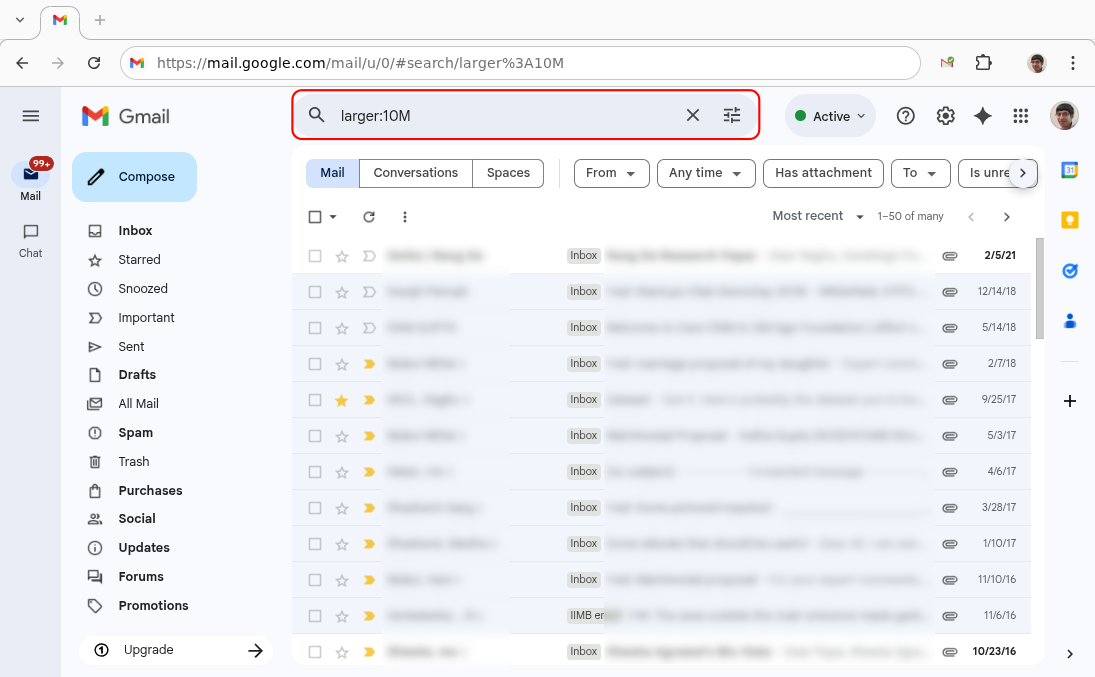
Gmail will show you all emails matching that size. Scroll through the results and decide which ones to delete.
The limitation: This works well, but you have to remember the exact syntax every single time. Most people Google "Gmail search by size" each time they want to do a cleanup — which is exactly as tedious as it sounds.
Method 2: Using Gmail's Advanced Search
If you'd rather not type search operators, Gmail's Advanced Search panel lets you set size filters visually.
- Open Gmail in your browser
- Click the filter icon (Show Search Options) on the right side of the search bar
- A panel will open — look for the Size section
- Select "greater than" from the dropdown and enter a size (e.g., 10 MB)
- Click Search
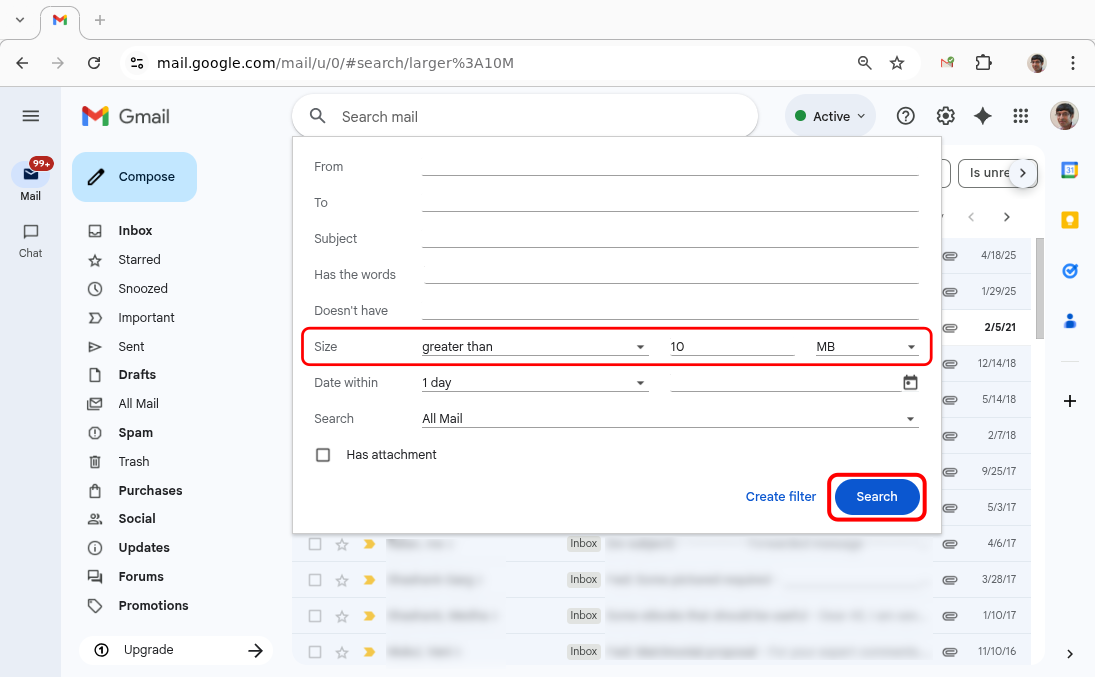
Gmail will display all emails above that size. From here, you can select and delete them manually or delete in bulk as shown below.
The limitation: Same problem as Method 1 — you have to go through these steps from scratch every single time you want to clean up.
Bulk Deleting the Results (Desktop Only)
Once you have your search results — whether from Method 1 or Method 2 — here's how to delete them all at once:
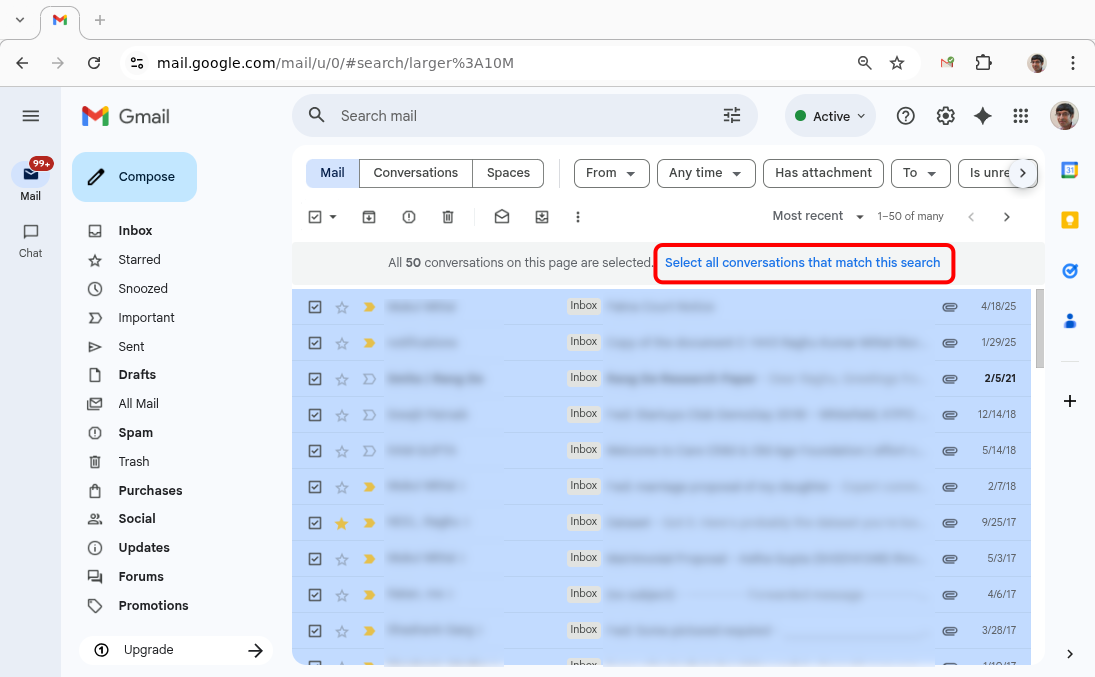
- Check the checkbox in the top-left corner to select all visible emails
- A message will appear: "Select all conversations that match this search" — click it to select everything, not just the current page
- Click the trash icon in the toolbar
- Gmail moves all selected emails to Trash
Important: Deleted emails sit in your Trash for 30 days and still count toward your storage during that time. To free up space immediately:
- Go to Trash in the left sidebar
- Click "Empty Trash now"
Note for mobile users: The Gmail app doesn't offer the "Select all matching conversations" option, so bulk deletion on mobile is very limited. For large-scale cleanups, use Gmail in a desktop browser.
The Real Problem: You'll Have to Do This All Over Again
Here's what nobody tells you: deleting large emails isn't a one-time fix.
Large emails keep arriving — project files, invoices, video clips, presentations. Within a few months, your storage starts creeping back up. And when you sit down to clean up again, you'll face the same questions:
- Was it
larger:10Morlarger_than:10MB? - Which combination of operators did I use last time?
- Do I include
has:attachmentor not?
Most people end up Googling the operators again, going through the same steps, and wondering why inbox cleanup always feels like such a chore.
The problem isn't that Gmail's tools are bad — they're actually quite powerful. The problem is there's no way to save and reuse these filters for future cleanups. You start from zero every single time.
That's exactly the gap that Clear Mail fills.
Save Your Filters Once, Reuse Forever — with Clear Mail
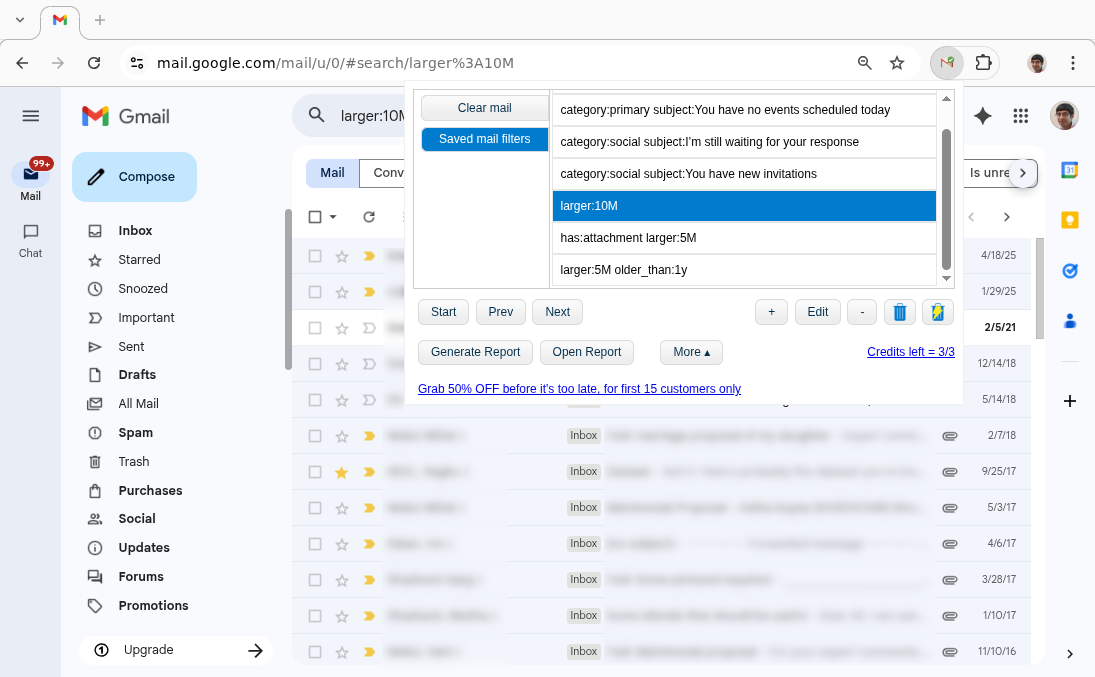
Clear Mail is a Chrome extension for Gmail that introduces a feature called Saved Mail Filters. The idea is simple: you set up a filter once and save it. Next time, open Clear Mail, double-click the saved filter, and it loads instantly in Gmail — no operators, no setup.
Here's how to set it up:
Step 1: Install Clear Mail
Install Clear Mail from the Chrome Web Store and open Gmail.
Step 2: Enter Your Size Filter and Save It
In Clear Mail, Move to Saved Mail Filters tab and press '+' to create a new filter. Add the filter text you want. For example:
larger:10Mto find emails over 10 MBhas:attachment larger:5Mto find emails with large attachmentslarger:5M older_than:1yto find large emails older than 1 year
Either press Enter or simply click outside to save the filter.
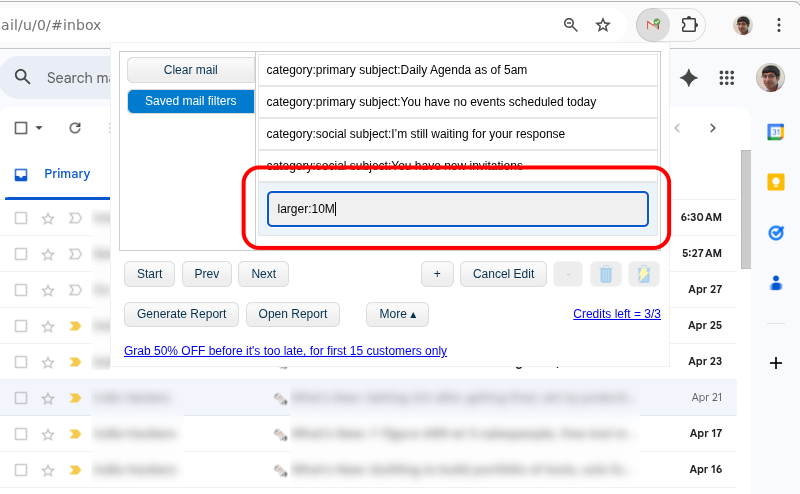
Step 3: Reuse It Anytime
Next time you want to clean up, open Clear Mail, go to Saved Mail Filters tab, and double-click the filter you saved. It instantly runs the search in Gmail — no typing, no Googling, no setup.
Pro Tips to Keep Storage Under Control
Once you've done the initial cleanup, a little ongoing maintenance goes a long way:
- Run your saved filters every 2–3 months. Set a calendar reminder. It takes minutes when you're not starting from scratch.
- Always empty Trash after cleanup. Deleted emails still count against your storage quota until the Trash is emptied. Don't skip this step.
- Combine size filters with date filters.
larger:5M older_than:6mtargets large emails you haven't touched in over six months — prime candidates for deletion. - Unsubscribe from newsletters regularly. They're small individually but add up fast. Fewer incoming emails means less frequent cleanups.
- Check what else is using your Google storage. Gmail shares its 15 GB limit with Google Drive and Google Photos. If you're tight on space, it's worth checking all three.
Conclusion
Running out of Gmail storage is frustrating — but fixing it doesn't have to be. Large emails are your best first target: delete a handful of them and you can reclaim hundreds of megabytes in minutes.
Gmail's native tools are good for finding these emails. The only real weakness is that you have to set everything up from scratch each time. That's where Clear Mail's Saved Mail Filters make a real difference: do the setup once, and every future cleanup is just a click away.
Clear Mail also has other amazing features that help you in decluttering your Gmail inbox effortlessly while respecting your privacy. To know more, check out our Getting Started Guide for a quick walkthrough. And if you're ready to dive in:
Go back to Blog