Troubleshooting Guide
Clear Mail is designed to work seamlessly with Gmail, but occasional issues may arise. This guide will help you quickly resolve common problems and get Clear Mail working.
System Requirements
Before using Clear Mail, make sure:
- You are using Gmail in a desktop browser (Chrome)
- Clear Mail may ask you to refresh your Gmail tab to function correctly. Make sure that you have refreshed accordingly.
- Clear Mail automatically registers your email address with our backend and you should have received this message within the Clear Mail popup:
User has been registered successfully!
Common Issues & How to Fix Them
1. I installed Clear Mail, but can't find the extension icon in my Chrome browser
When you install Clear Mail, the extension icon should appear in your Chrome browser's toolbar. If you don't see it:
- Click the Puzzle Piece icon: In your Chrome browser, click the puzzle piece icon (Extensions icon) to the right of the address bar.
- Find Clear Mail Extension and Click Pin: A dropdown will show your installed extensions. Find Clear Mail and click the small pin icon next to it.
- The Clear Mail icon will now appear in your Chrome toolbar.
2. Clear Mail icon appears grayed out and clicking it shows a Chrome Menu, not Clear Mail popup
Whenever Clear Mail is not on Gmail tab, the icon is grayed out and temporarily disabled. When you click on the grayed out icon, it shows a Chrome menu with options related to general management of the Extension. The menu appears like this:
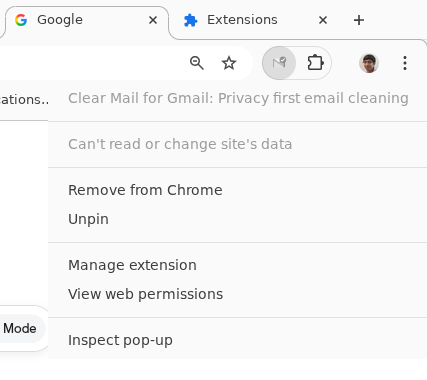
Solution: Move to Gmail tab and now, the Clear Mail icon will be enabled. Clicking it will show the Clear Mail popup.
We realize that this behavior of Clear Mail icon getting disabled on webpages other than Gmail causes confusion. To improve usability, we plan to update the onboarding experience in future, so that the Clear Mail icon remains enabled even when you are not on Gmail.
3. Clear Mail goes in a loop where it keeps showing dialog to refresh Gmail tab for user registration
In rare cases, certain users may encounter this issue where Clear Mail keeps showing dialog to refresh Gmail tab for user registration, even after refreshing many times. You might see this kind of dialog repeatedly:
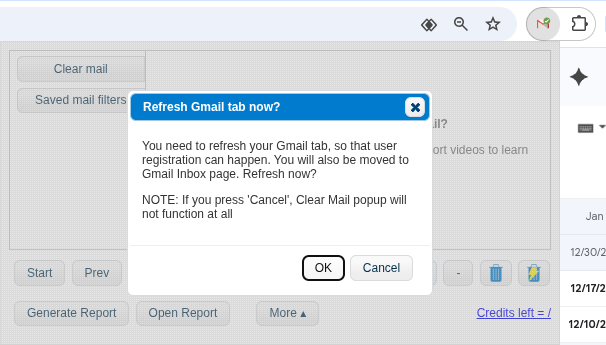
Solution: This happens because Clear Mail is not able to pick up your email id from Gmail and hence registration is not completed. You can try restarting Chrome browser, open your Gmail tab and try again.
If you still see this dialog, it could be due to some issue which you can't fix on your own. In that case, please report to us at raghu.kumar@clearmailapp.com
4. When I hit Generate report button, it shows a progress indicator, but nothing happens
In rare circumstances, Gmail renders in a way that Clear Mail automation breaks and throws errors. When this happens, an error stack trace is uploaded to our backend servers automatically. In such scenario, you will see a progress indicator but the report generation will not start.
Solution: Restart Chrome browser, open your Gmail tab and try Generate Report again. If the issue persists, please report to us at raghu.kumar@clearmailapp.com
Still Having Trouble?
If none of the steps above resolve the issue, try the following:
- Refresh Gmail
- Restart Chrome
- Uninstall and reinstall the Clear Mail extension
If the problem persists, please contact us at 📩 raghu.kumar@clearmailapp.com and include:
- A brief description of the issue
- A screenshot of the error message (if possible)
Go back to Documentation