Gmail Not Receiving Emails? 9 Causes and How to Fix Each One
July 29, 2026 · Written by Raghu Kumar
You're refreshing your inbox. You know the email is coming - maybe it's a password reset or a client reply - yet, it's just not showing up. Before you assume the sender never sent it, know this: in the vast majority of cases, the problem is sitting in your own Gmail settings, and it's fixable in a couple of minutes once you know where to look.
This guide walks through the causes, where the list is roughly sorted from "most common" to "least common."
1. Your Gmail storage is full
This is the single most common reason Gmail stops receiving email. Once your Google account (Gmail + Drive + Photos combined) hits its storage limit, incoming mail simply bounces back to the sender instead of landing in your inbox.
How to check:
- On desktop, go to Google's storage page or scroll to the bottom of your Gmail inbox, where Google shows a usage bar.
- On mobile, tap your profile photo in the top right of the Gmail app - your storage percentage shows right there.
If you're near or at 100%, that's almost certainly your answer.
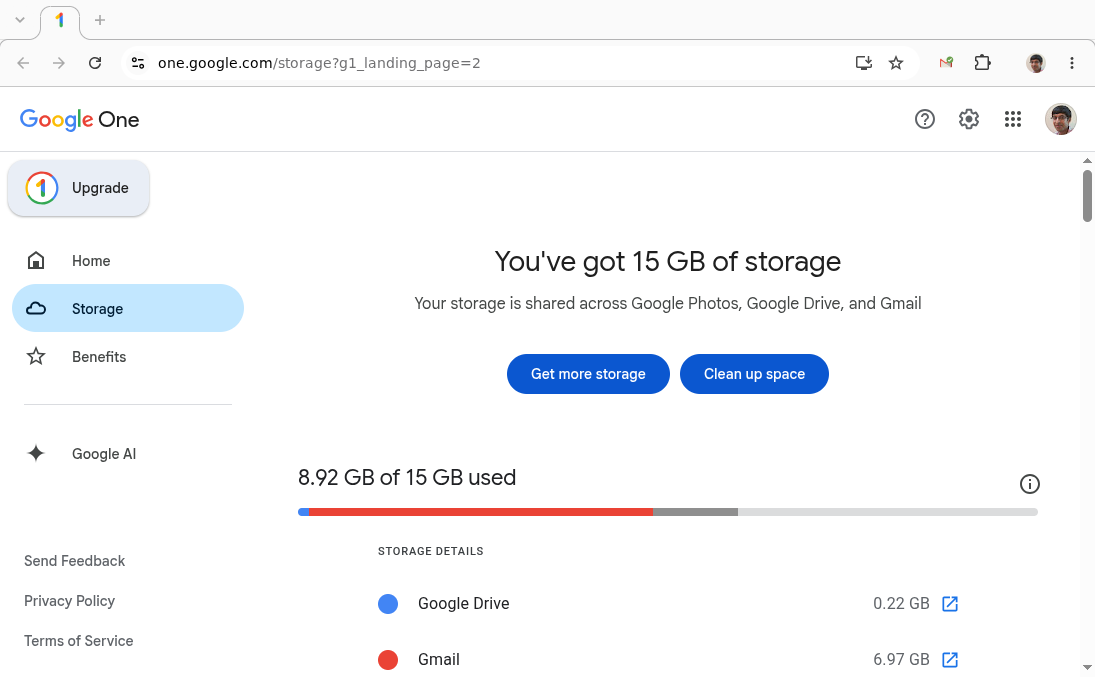
How to fix it:
You have two options: pay for more storage, or free up what you already have. Most people don't actually need more storage - they need to clear out years of newsletters, receipts, and notification emails that are quietly eating their quota.
The manual way is going into Gmail, searching by sender, selecting messages, and deleting them 50 at a time (Gmail's default selection limit). It works, but it's slow if you've got thousands of promotional emails piled up.
This is exactly the problem we built Clear Mail for - it's a Chrome extension that sorts by sender, helps in bulk-deleting email, and that too without asking for OAuth access to your account. If storage turns out to be your issue, it's worth a look before you pay Google for more space.
I've also written a post on how to find and delete large emails from Gmail which might be useful here as well.
2. A filter is silently archiving, forwarding, or deleting mail
Gmail filters are powerful, and that's exactly the problem - a filter you set up months ago (or one that got triggered by accident) can skip the inbox, auto-archive, auto-delete, or forward mail before you ever see it. You won't get a notification when this happens; the email just quietly disappears.
How to check:
- Click the gear icon → See all settings
- Go to the Filters and Blocked Addresses tab
- Scan the list for any filter that includes "Skip Inbox," "Delete it," "Apply label and skip inbox," or "Forward it"
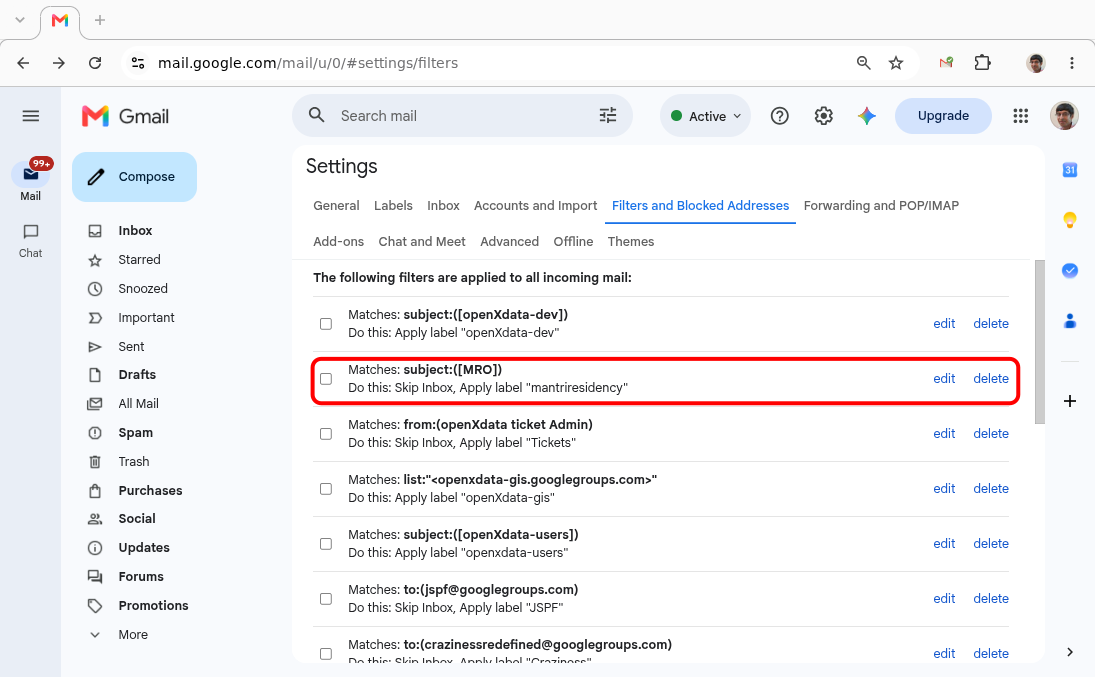
How to fix it: Edit or delete any filter that's routing mail somewhere other than your inbox. If you're not sure a filter is the culprit, temporarily disable filters that are tied to keywords in the sender's email or subject line. Since Gmail doesn't support a direct disable, you can edit the filter temporarily, so that it breaks and thus is effectively disabled.
3. Forwarding is quietly redirecting your mail
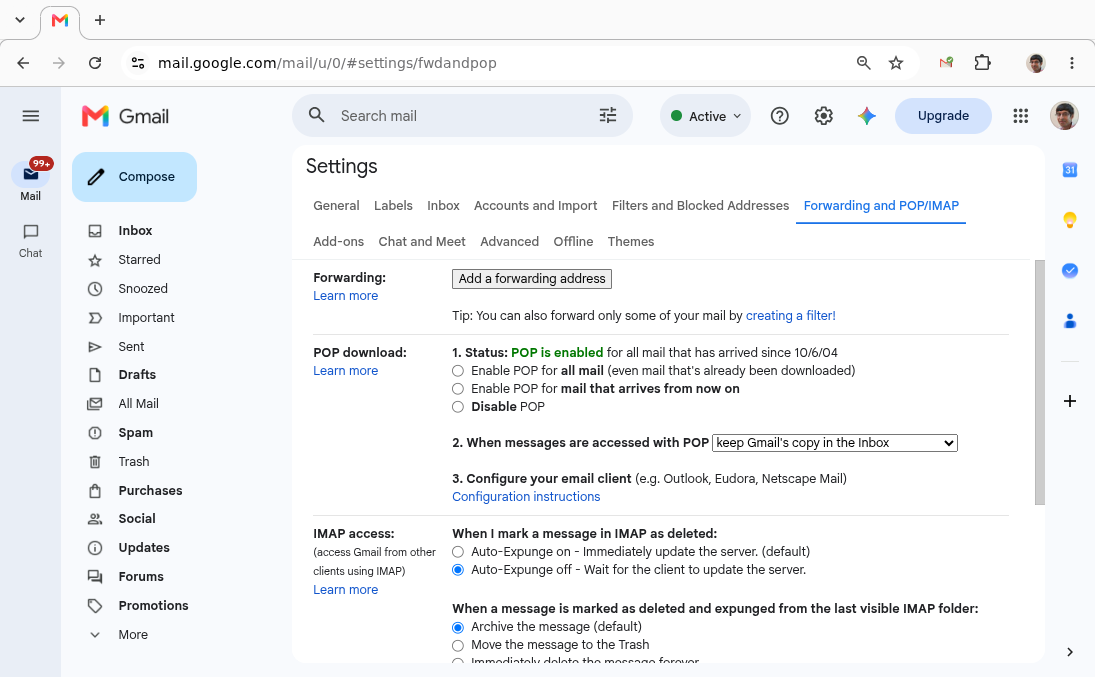
Similar to filters, but easier to overlook: if email forwarding got turned on at some point - by you, by an app you gave account access to, or in rare cases by someone else who accessed your account - every incoming email could be getting copied or redirected elsewhere before it reaches you.
How to check and fix:
- Gear icon → See all settings → Forwarding and POP/IMAP tab
- If forwarding is enabled and you didn't set it up intentionally, disable it
- It's also worth reviewing which third-party apps have access to your account. Check the next heading:
4. Your mailbox has connected apps interfering - sometimes an app you connected might have very broad permissions and it might have setup forwarding.
4. Your mailbox has connected apps interfering
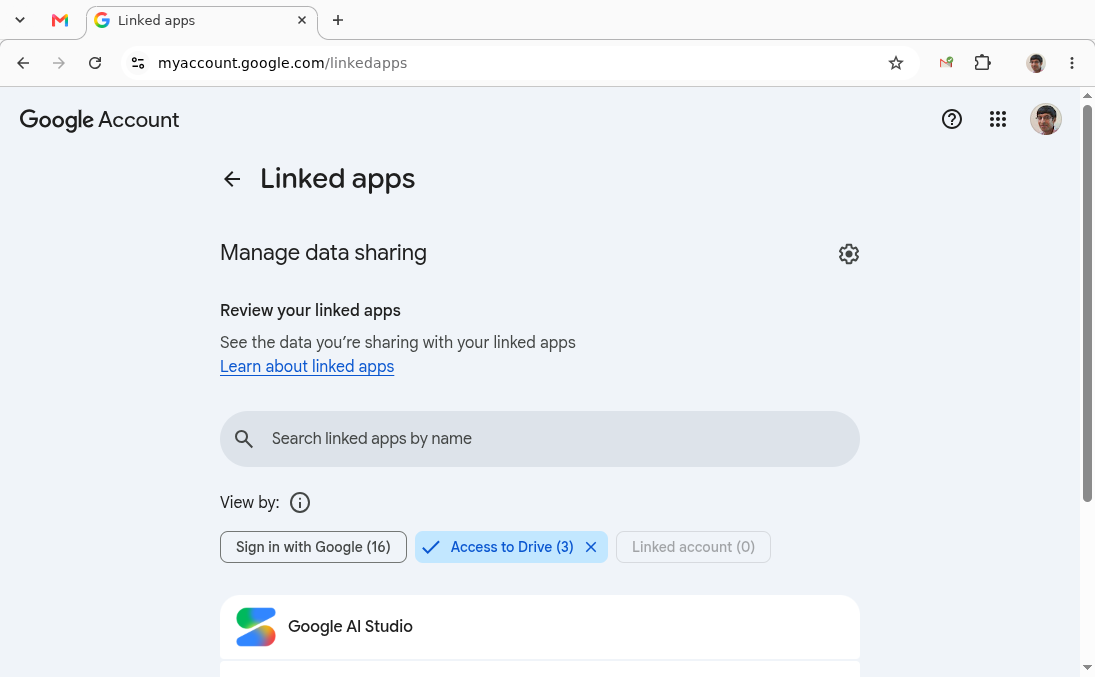
If you've granted a third-party inbox tool, CRM, or automation app access to your Gmail account, it can sometimes create filters, labels, or forwarding rules on your behalf as part of its normal function - and those changes don't always get cleaned up if you stop using the app. This is one of the quieter risks of granting broad OAuth access to your inbox in the first place.
How to check: Go to myaccount.google.com/linkedapps and review every app listed. Revoke access for anything you don't recognize or no longer use, then re-check your filters and forwarding settings (steps 2 and 3 above) for anything left behind.
5. The email landed in Spam, or you blocked the sender
Gmail's spam filtering is good, but it is also a bit too aggressive on occasion. Hence, legitimate emails from new senders, cold outreach, or automated systems can get flagged.
How to check:
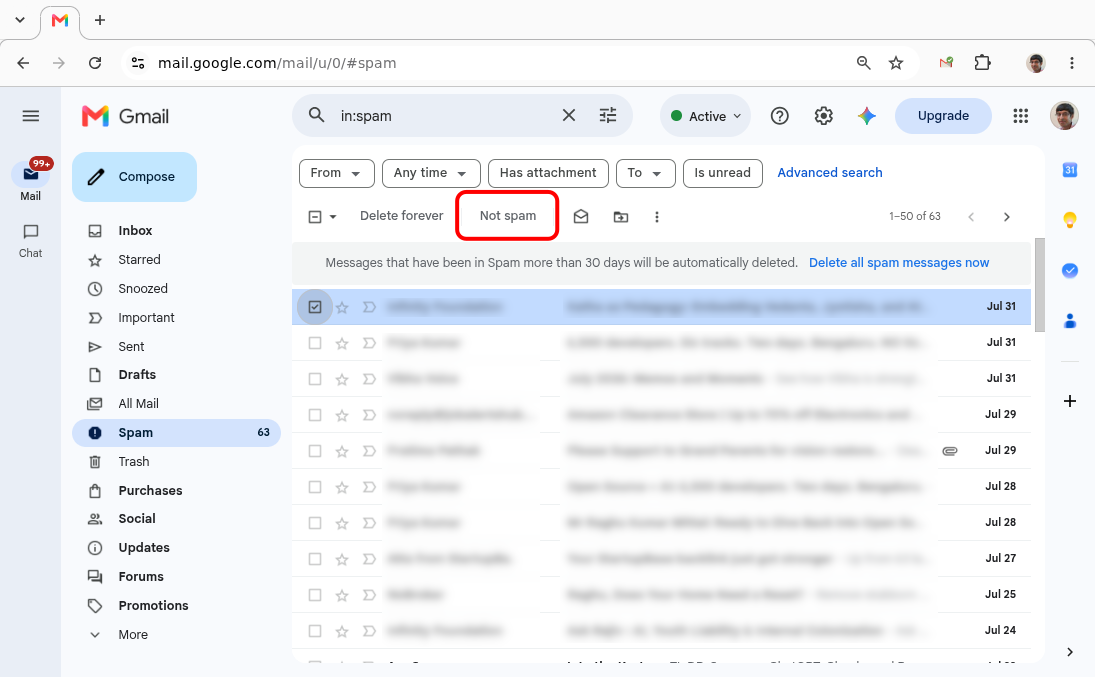
- Search your Spam folder for the sender's name or subject line
- Check Blocked Addresses (same tab as filters, above) - it's easy to block someone by accident from a mobile notification.
How to fix it: Mark the email "Not spam" and add the sender to your contacts - Gmail treats known contacts more leniently going forward. If they were blocked, unblock them from the same settings tab.
6. The sender has blocked you (or their domain has issues)
Sometimes the problem isn't on your end at all. If someone has blocked your address, Gmail won't tell you - there's no notification either way. The only way to confirm is indirectly.
How to check: Ask the sender to try a different communication channel, or have them check whether their own outgoing mail is bouncing. If they're sending from a business domain, their domain's email authentication (SPF/DKIM/DMARC) may be misconfigured, causing Gmail to silently drop the message - this is a fix on their end, not yours.
7. The Gmail mobile app isn't syncing
If this is only happening on your phone while the web version is fine, it's a sync issue, not a delivery issue - the emails are arriving, your app just isn't showing them.
How to fix it:
- Check that background app refresh / background data is enabled for Gmail in your phone's settings
- Confirm Gmail's own sync setting is turned on: Settings → [your account] → Sync Gmail
- Make sure the Gmail app is updated to the latest version
- If none of that works, remove the account from the app and re-add it - this resolves most persistent sync glitches.
8. Your domain is blocking or misrouting mail (Google Workspace)
If you're on a business or school Google Workspace account rather than a personal @gmail.com address, the cause might sit at the admin level, outside your personal settings entirely - an org-wide filter, a routing rule, or a domain-level block.
How to check: If you have admin access, check the Workspace Admin Console under Apps → Gmail → Routing. If you don't have admin access, this is worth flagging to whoever manages your organization's Workspace account.
9. Gmail is having a service outage
Rare, but worth ruling out if everything above checks out and the problem started suddenly with no changes on your end.
How to check:
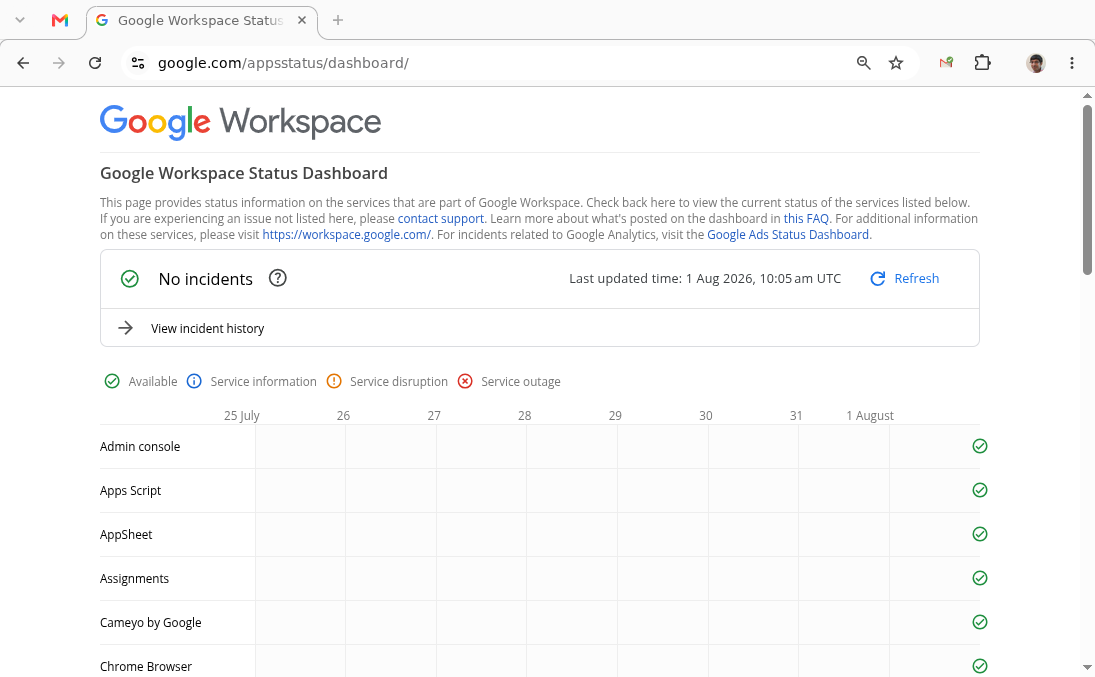
- The official way to check Gmail status is via the Google Workspace Status Dashboard
- Downdetector is a public crowd-sourcing platform that can help you quickly check if other users are suddenly reporting issues with Gmail. Downdetector for Gmail
If there's a reported outage, there's nothing to do but wait it out.
Keeping this from happening again
Once you've found and fixed the cause, the best prevention is simple: don't let your inbox get back into a state where storage, filters, and clutter can cause problems again. A cluttered inbox is exactly what makes it hard to notice a misbehaving filter or a storage warning in the first place - the signal gets buried under years of newsletters and notifications.
That's really the whole idea behind Clear Mail: a quick way to see who's actually filling up your inbox and clear it out in bulk, without granting any OAuth access.
For a quick walkthrough, check out our Getting Started Guide. And if you're ready to dive in:
Related reading:
- Gmail Storage Full? Find and Delete Large Emails to Fix It Fast
- Beyond the Benefits: The Real Risks of "Sign up with Google"
Go back to Blog